# Elegoo Spaghetti Detection
Home Assistant spaghetti/failure detection with an Elegoo Centauri Carbon-first setup, designed around [`danielcherubini/elegoo-homeassistant`](https://github.com/danielcherubini/elegoo-homeassistant).
Other printers or workflows can also be used when they expose a Home Assistant camera entity, optional light entity, and user-defined automations, but they are not the primary target.
[](https://my.home-assistant.io/redirect/hacs_repository/?owner=hepter&repository=ha-elegoo-spaghetti-detection&category=integration)

The integration turns camera snapshots into Home Assistant entities and events.
Printer actions such as pause, stop, resume, and notifications stay in your own
automations, so the same detector can be used with different printer setups.
## Quick Start
1. Run the ML server. See [ML server and logs](docs/ml-server.md).
2. Install the custom integration through HACS or manually. See
[Installation](docs/installation.md).
3. Add `Elegoo Spaghetti Detection` from Home Assistant integrations.
4. Select the camera and optional print status sensor. See
[Configuration](docs/configuration.md).
5. Press `Test Spaghetti Detection`.
6. Add one of the [automation examples](docs/automations.md).
7. Add one of the [dashboard examples](docs/dashboard.md).
## Documentation
- [Installation](docs/installation.md)
- [Configuration](docs/configuration.md)
- [Automation examples](docs/automations.md)
- [Dashboard examples](docs/dashboard.md)
- [ML server and logs](docs/ml-server.md)
- [Troubleshooting](docs/troubleshooting.md)
- [HACS publishing notes](docs/HACS_PUBLISHING.md)
## How It Works
```text
camera snapshot -> ML server -> confidence/result sensors -> Home Assistant events
```
The integration detects possible print failures and exposes Home Assistant
entities/events. It does not directly control the printer.
When a print status sensor is configured, scheduled detection only runs during
the configured active print states. Elegoo `print_status` sensors are also
guarded by the companion `current_status` sensor when it exists, which avoids
scheduled checks during homing or idle states where `print_status` can remain
`printing`.
## Features
- Works with Home Assistant camera entities, including Elegoo chamber cameras.
- Uses an Obico/TSD FDM failure model running in a local Docker/HA add-on server.
- Validates ML server health and camera image reachability during setup.
- Optional print status sensor gates scheduled detection to active print states.
- Optional chamber light control can leave the light alone, turn it on and keep
it on, or temporarily turn it on and restore the previous state after each
snapshot.
- Manual `Test Spaghetti Detection` button.
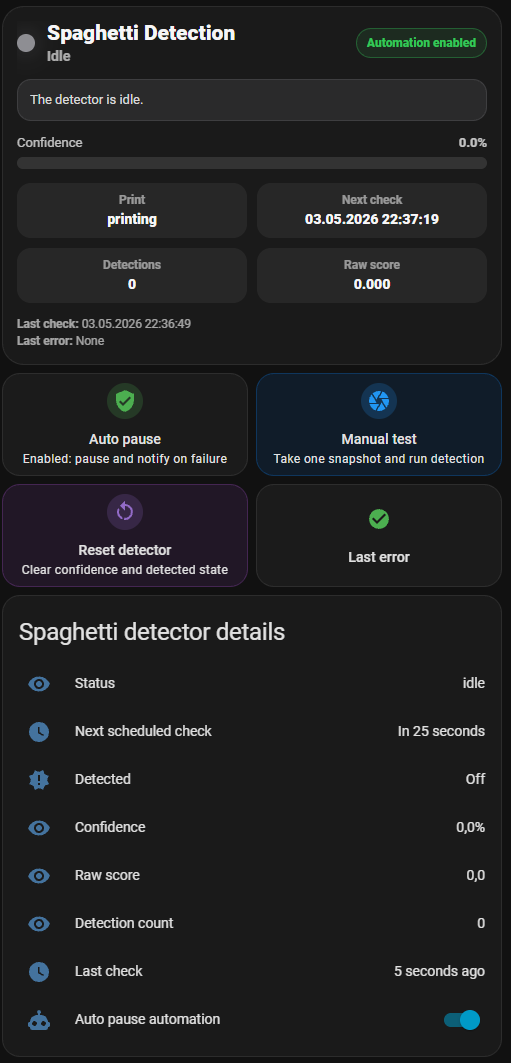
- Confidence, raw score, detection count, status, last run, next run, and last
error sensors.
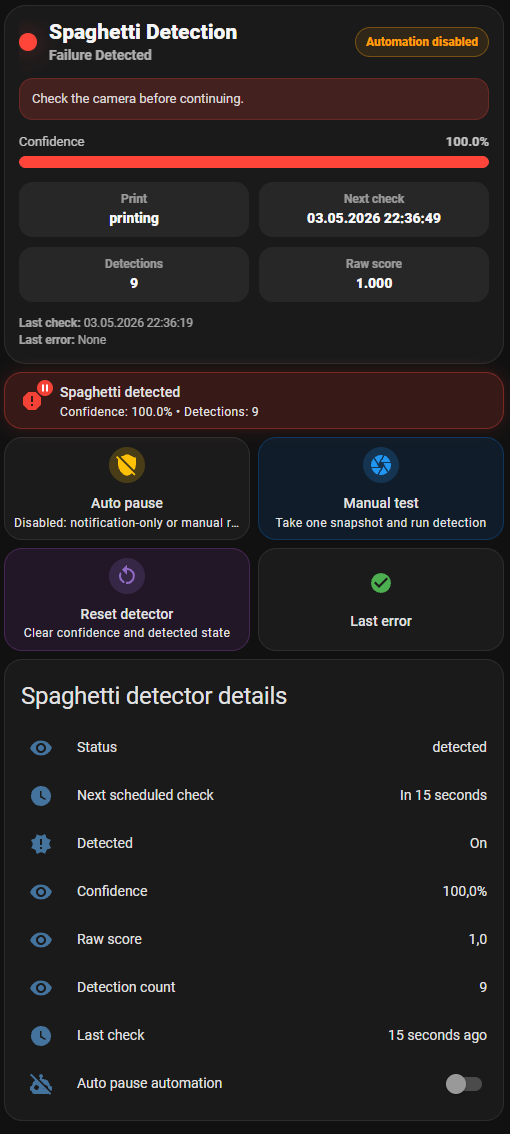
- `binary_sensor._spaghetti_detected`.
- Events for every result and for detected failures.
- ML server web dashboard, JSON status, recent request logs, and image debug
endpoint.
- CPU-first ML startup by default to avoid CUDA timeout failures on systems
without a working GPU runtime.
## Screenshots
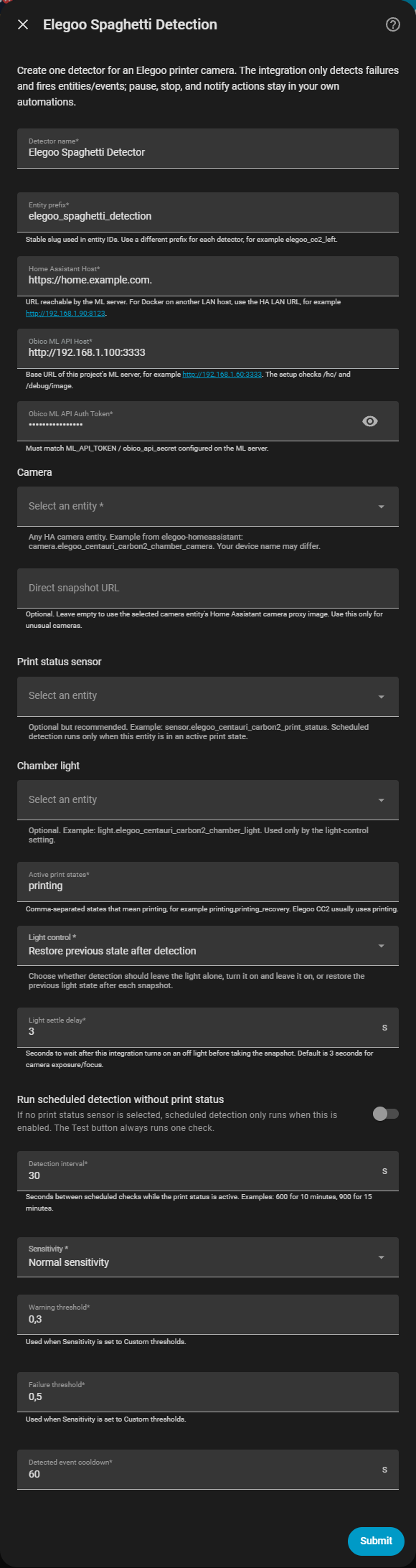
Integration setup:
Enhanced dashboard in idle state:
Enhanced dashboard after a detected failure:
## Typical Elegoo CC2 Entities
Your entity IDs depend on the printer/device name in Home Assistant. With a
default-ish Elegoo Centauri Carbon 2 setup they often look like:
```text
camera.elegoo_centauri_carbon2_chamber_camera
sensor.elegoo_centauri_carbon2_print_status
light.elegoo_centauri_carbon2_chamber_light
button.elegoo_centauri_carbon2_pause_print
button.elegoo_centauri_carbon2_resume_print
button.elegoo_centauri_carbon2_stop_print
```
The integration setup uses only camera, optional print status, and optional
light. Pause/stop/resume are shown only in automation examples.
## Events
Every detection result fires:
```text
elegoo_spaghetti_detection_result
```
Detected failures fire:
```text
elegoo_spaghetti_detection_detected
```
When a print status sensor is configured, scheduled detected events are emitted
once per active print window. If the printer leaves the configured active states
and later returns to an active state, a new detected failure can emit one new
event.
Use this event for notification, pause, and stop automations.
`elegoo_spaghetti_detection_result` still fires for every completed check. Use
that event for logging, dashboards, or advanced automations only; notification
automations based on the result event can repeat every detection interval.
Event data includes:
```text
config_entry
detector
name
camera
manual
printer_state
confidence
raw_score
detected
detections
image_url
last_error
last_run
next_run
status
```
Use these fields in notifications and advanced automations.
## Credits
This project started as an Elegoo-focused adaptation of
[`nberktumer/ha-bambu-lab-p1-spaghetti-detection`](https://github.com/nberktumer/ha-bambu-lab-p1-spaghetti-detection).
The original project provided the Obico ML workflow and Home Assistant
integration foundation.